Employee Board
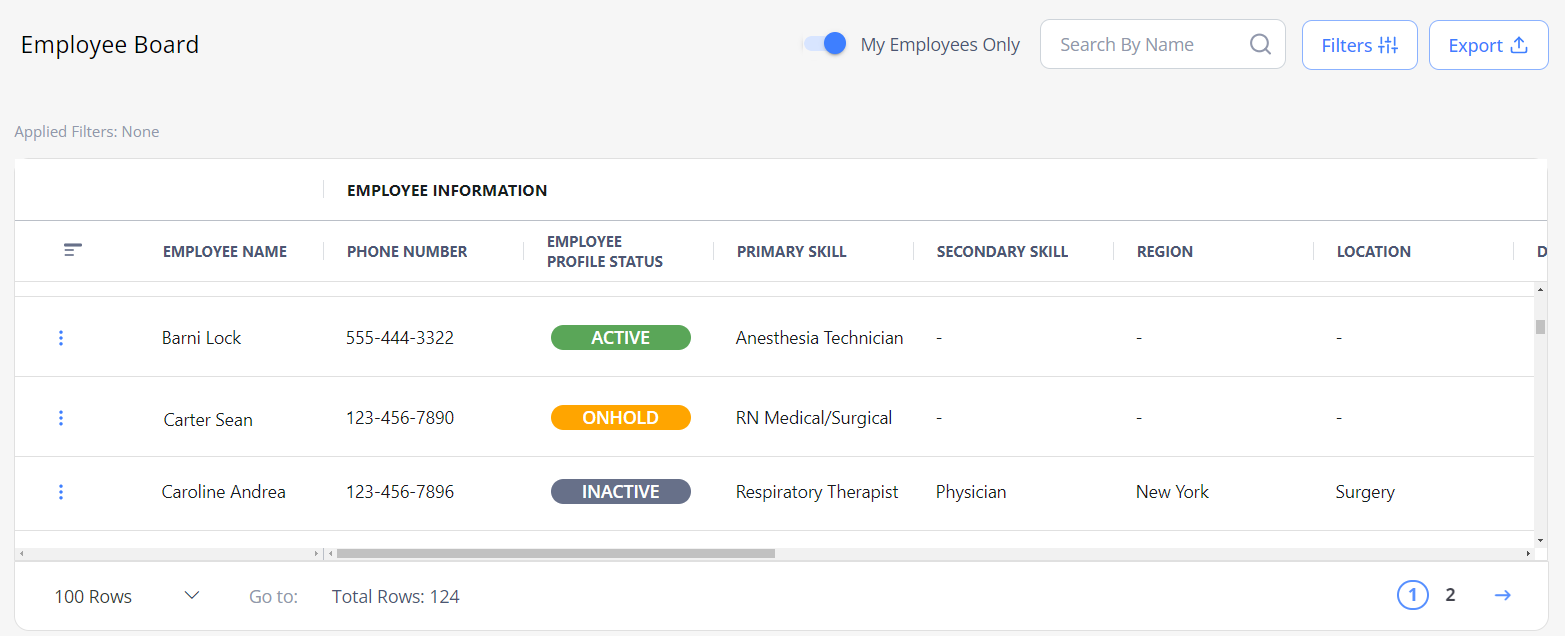
On Employee Board, view information about your Organization's Employees and their order details. Hide the imageSee the image.
- This tab is available only if you have the proper permission.
By default, the page displays the Employees who selected the logged-in user as their recruiter. If you do not have such Employees, the grid will be empty. To view all Employees, regardless of their recruiter, turn OFF the My Employees Only toggle above the grid.
To access the needed Employees faster, search by their name or apply Filters that will be preserved on this specific page.
View orders' information
Besides the Employees' information, the Employee Board provides the following details about the Employees' orders:
- Per Diem orders:
- Orders Currently Onboarded: total number of orders for which an Employee is currently in the Onboarded status.
- Last Shift: date of the Employee's Per Diem shift that starts before the current time.
- Next shift: date of the Employee's Per Diem shift that starts after the current time.
Add notes and communicate with Employees
On the Employee Board, you can add Employee-related notes and email or text them by selecting the three-dots icon  next to the needed Employee in the grid and using the following options (Hide the imageSee the image):
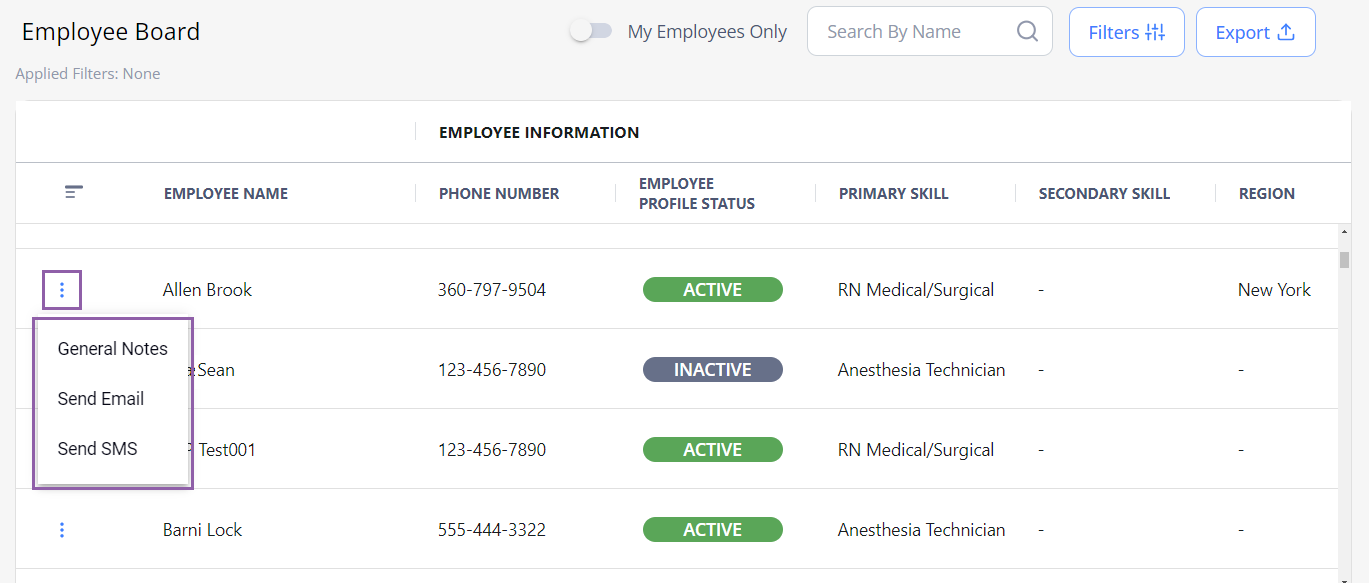
- General Notes
- Send Email
- Send SMS.
Export Employee Board
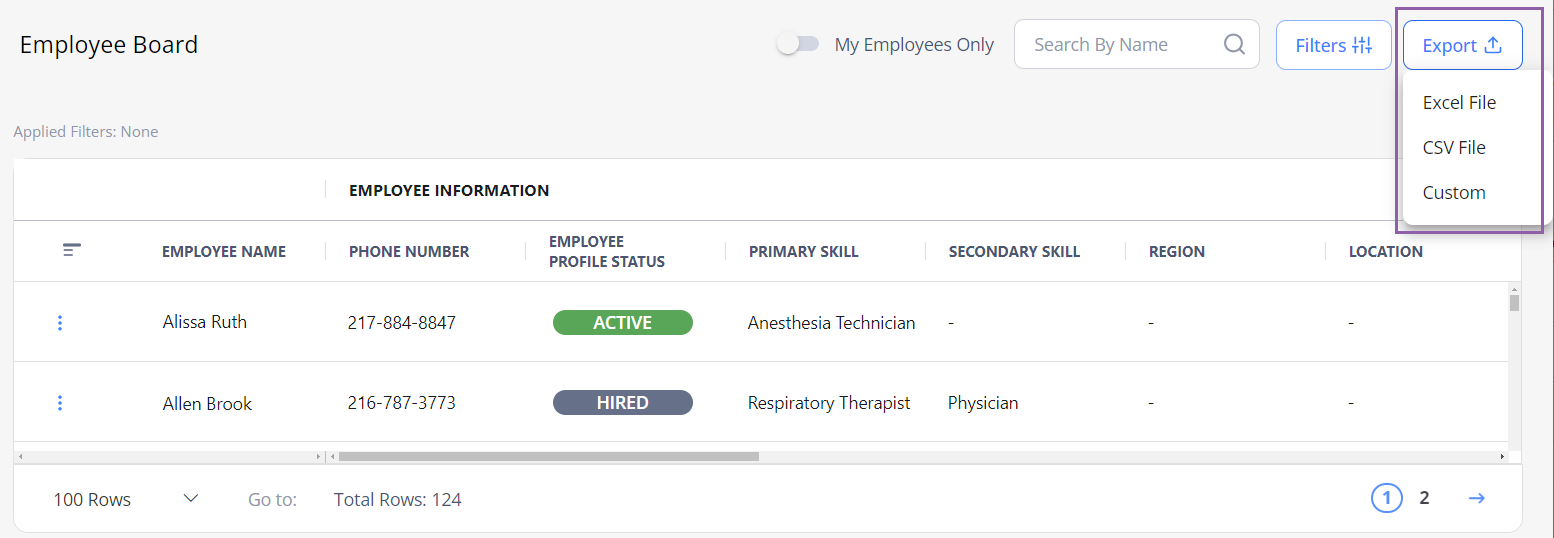
To export information displayed on the Employee Board, select Export at the top of the page and choose the needed format. Hide the imageSee the image.
See also